
- Here comes the revolution in passwords: we’re finally moving past them.
- Congratulations on your two new (fake) job offers!
- Is what you’re doing online illegal? Seriously…some of it could be. Take the quiz and find out.
Was this content helpful?
Live Cyber Poll
Cybersecurity News You Can Use
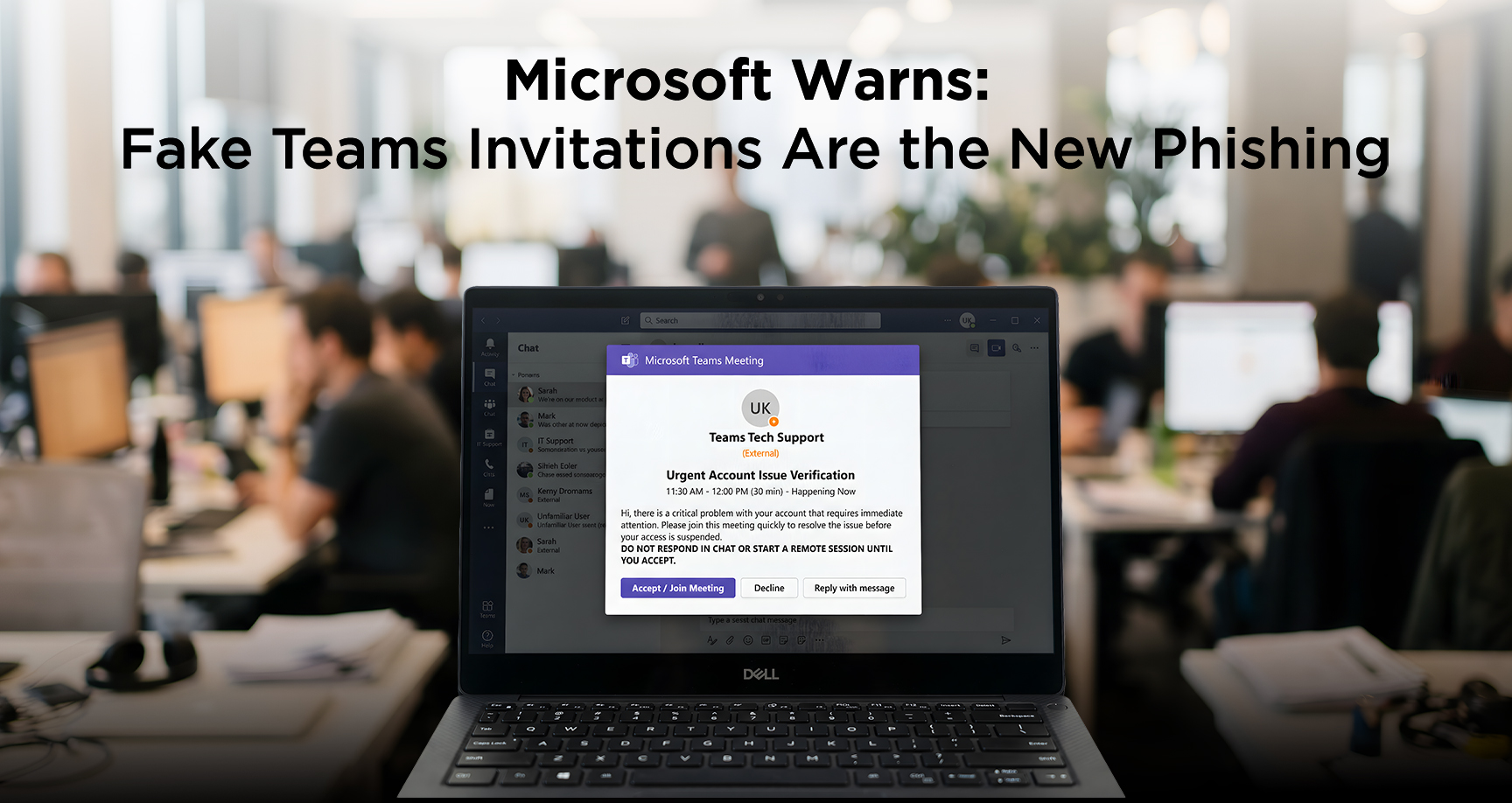
Word just in from Microsoft: Attackers are exploiting a way to send fake Microsoft Teams messages that look like they’re from an organization’s tech team.
If someone accepts the chat and follows the directions, the intruder tries to start a remote‑access session and move around the computer and the organization’s computer systems as if they were real support staff. That can lead to stolen data and compromised accounts.
Here’s an actual example of what an
external Teams invitation looks like.
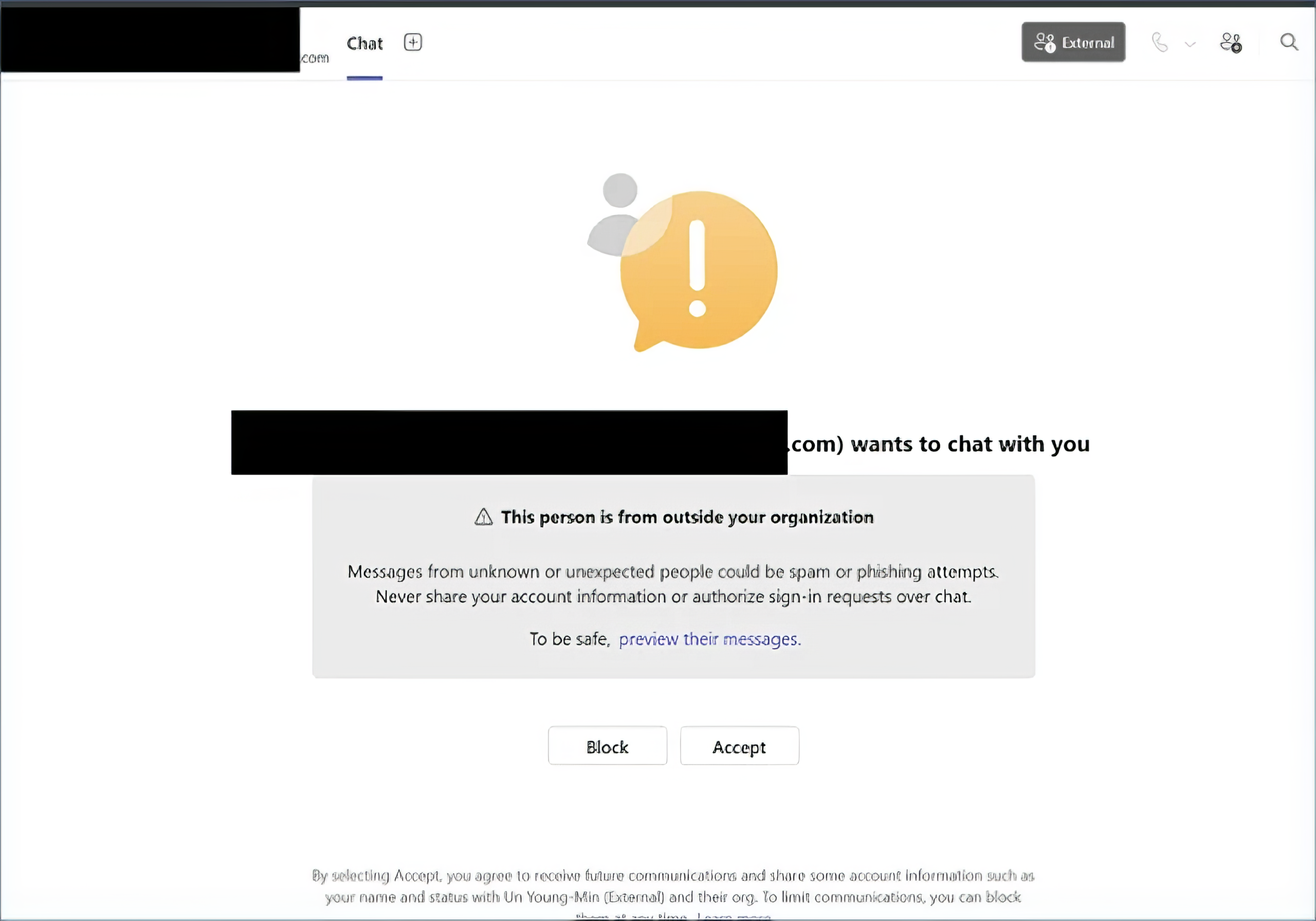
If you get a Teams chat about a “problem” with your account or device from someone you don’t recognize, especially if it shows as external or asks you to click “Accept” quickly, do not respond or start a remote session.
Never give your password, MFA code, or control of your screen to anyone who contacts you unexpectedly on Teams or by phone; instead, end the conversation and alert your IT team right away.
Update Your Password
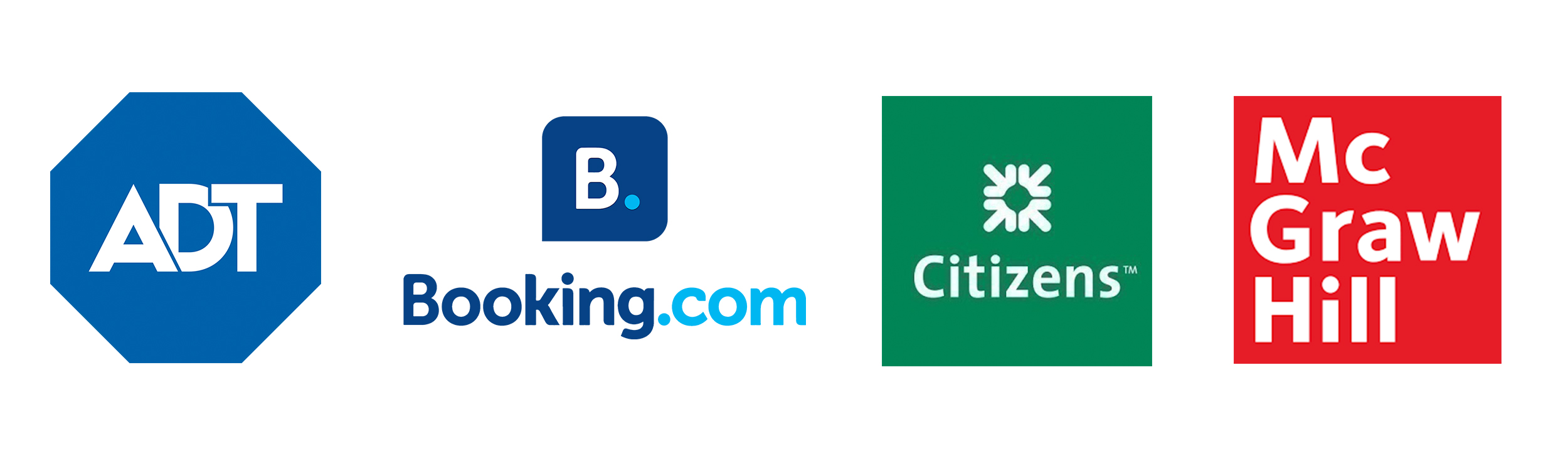
Users’ passwords from these organizations have recently been found for sale on the dark web.
If you do business with any of these companies, change your account password and use two-factor authentication wherever possible.
Phish of the Week
“I got two job offers back-to-back!”
Two “recruiters” texted me out of the blue with offers for easy, high‑paying remote jobs they claimed were from big-name companies. The messages looked professional, but they were designed to get me to hand over my personal information.
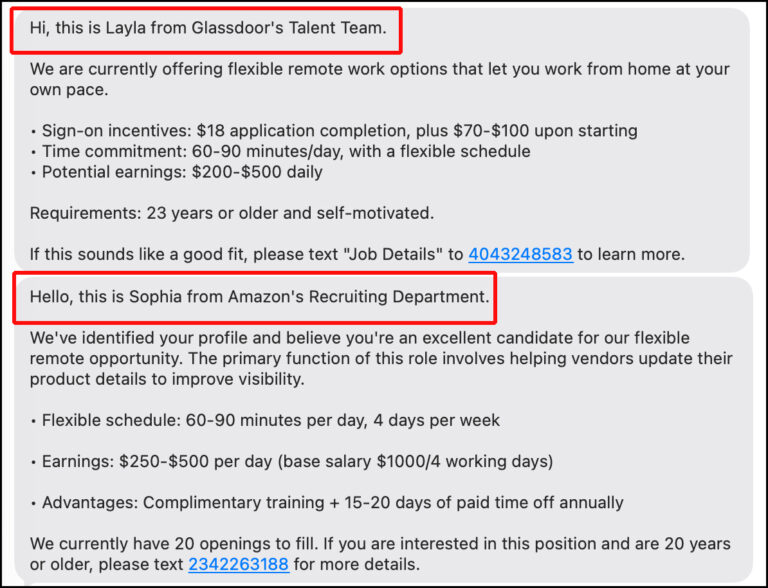
These scammers don’t actually know who you are. They collect hundreds of thousands of contacts from online résumés, data brokers, or data breaches and use automated tools to send texts.
They steal hundreds of millions of dollars every year: After you engage, they ask you to pay for training, equipment, a background check, or “unlock” tasks, then disappear with your money.
Or they pressure you to share sensitive details (government ID numbers, date of birth, bank info, photos of your ID) under the guise of HR paperwork, then use that data to steal your identity.
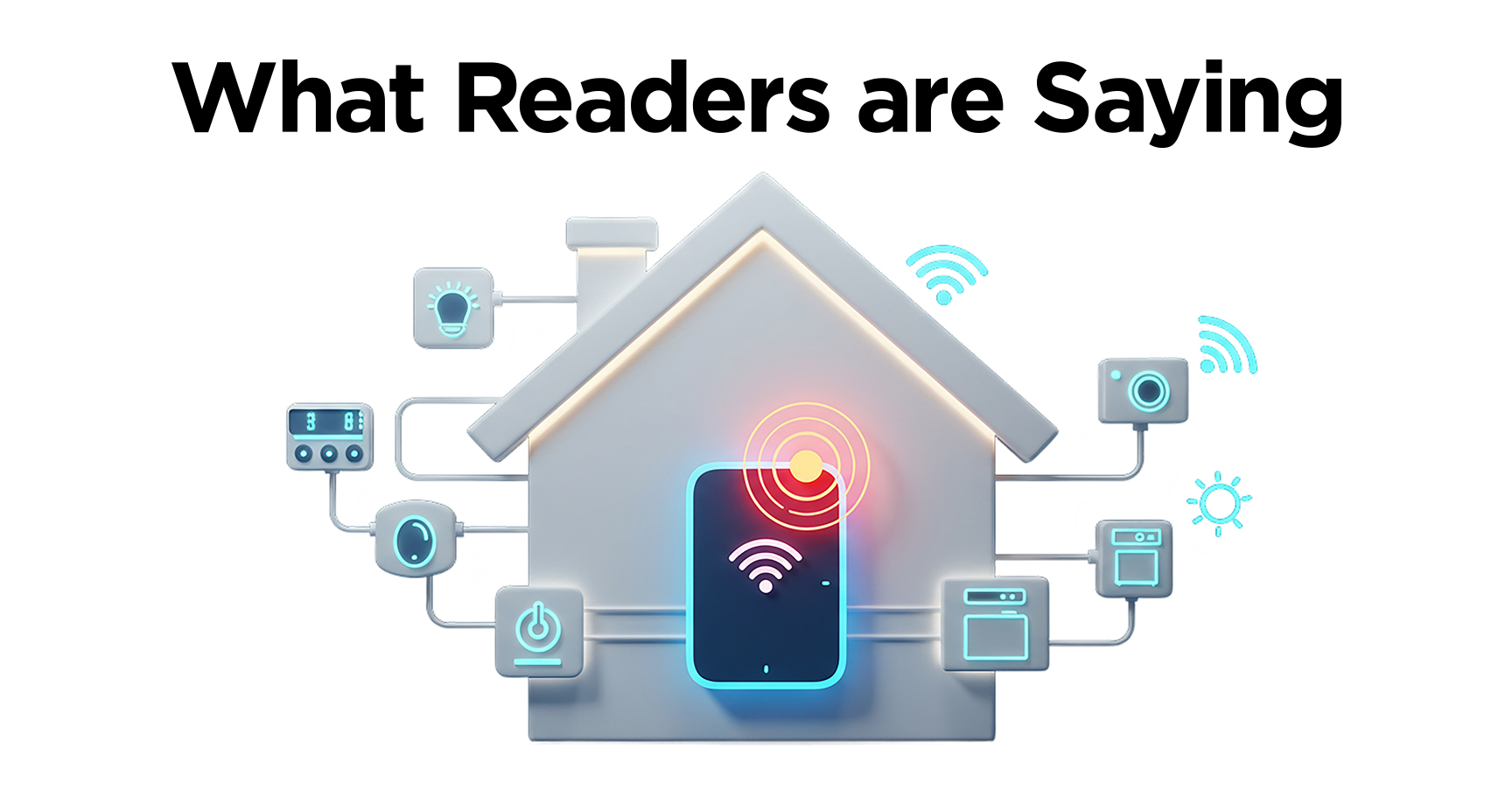
About 85% of our readers say they worry about the privacy and security of their AI‑powered smart home gadgets—things like video doorbells, thermostats, smart bulbs, speakers, and even always-connected fridges. Yet fewer than half feel confident they understand or properly use the privacy settings on these devices.
- Many smart home devices ship with weak or default passwords (like “admin” or “123456”), which attackers can easily guess and use to take over cameras, doorbells, and other gear.
- A single hacked device (for example, a thermostat or smart light) can be used as a gateway to attack other devices on your home network, including locks, cameras, and computers.
- Smart gadgets often “phone home” to company servers and share far more data than most owners realize, including audio, video, and behavioral patterns like when you’re usually at home.
Start here: Pick one smart device: speaker, camera, doorbell, anything…and review its privacy settings.
- Turn off features you don’t use
- Check what data is being stored or shared
- Update permissions or firmware if needed
Was this content helpful?
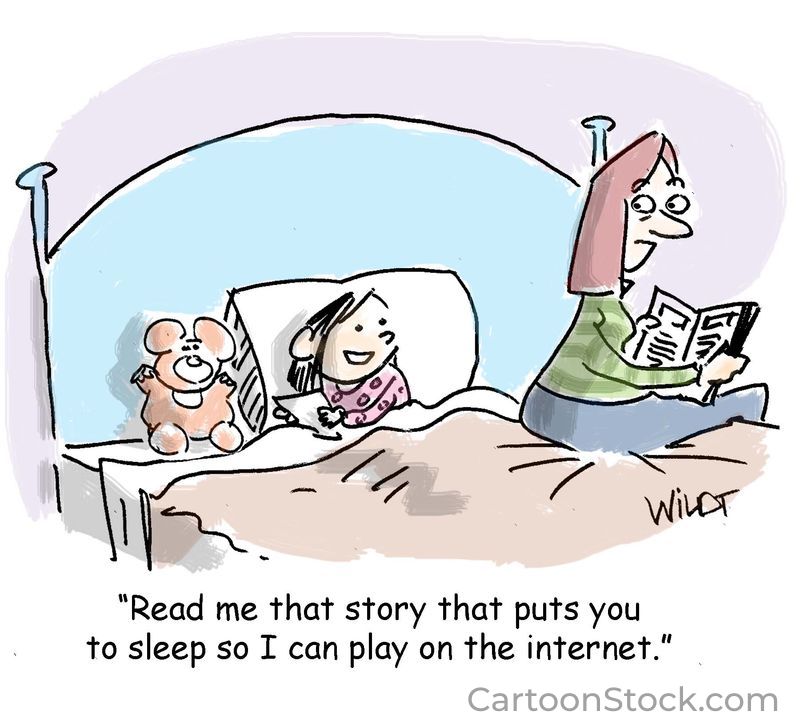
One more thing...
Two of our readers sent us tips worth knowing:
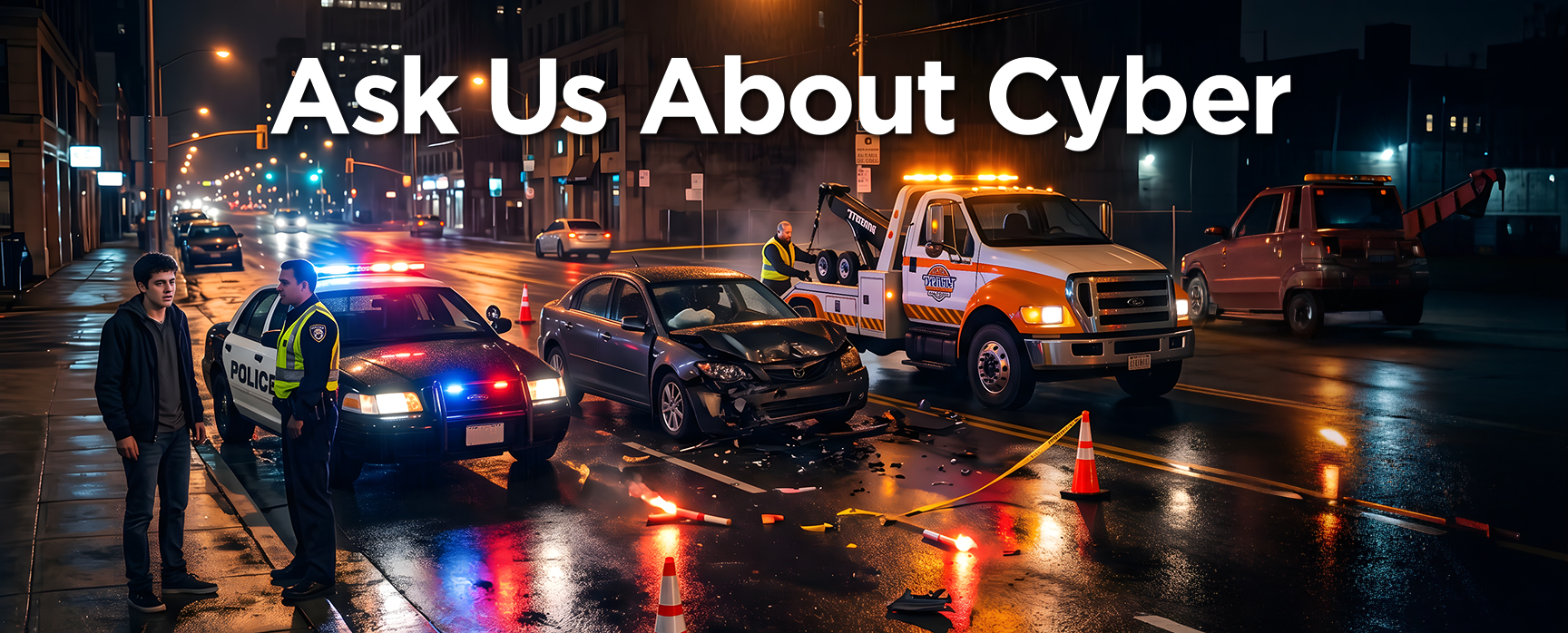
TOW TRUCK SCAM: My wife was recently in a car accident, and thankfully, she’s okay. I learned that scammers rush to crash scenes, claim they have video, and ask for your phone number so they can send it to you. Then someone calls, pretending to be your car company or insurer, and offers to dispatch a tow truck. Their tow truck shows up, has you sign paperwork, and later hits you with huge towing and storage charges that you’re forced to pay.
To protect yourself, always contact AAA or your insurance company directly (or have the police request the tow), verify that any tow truck taking your car is legitimate, and share this scam warning with friends and family so they’re prepared too.
KEEPING TRACK OF YOUR ONLINE PURCHASES: I buy a lot online and was having trouble keeping up with it all. I was surprised by how many things I ordered never arrived! Two things solved the problem: First, in Gmail, there is a new folder in the left column called “Purchases,” which is a great way to keep tabs on your orders.
(Ed: Gmail is rolling out a built‑in Purchases tab/label to most personal Google accounts, but it may not appear for everyone at the same time because it’s a phased launch.)
I also created a folder called “ecommerce,” and every time I order something, I move the email confirmations into it.
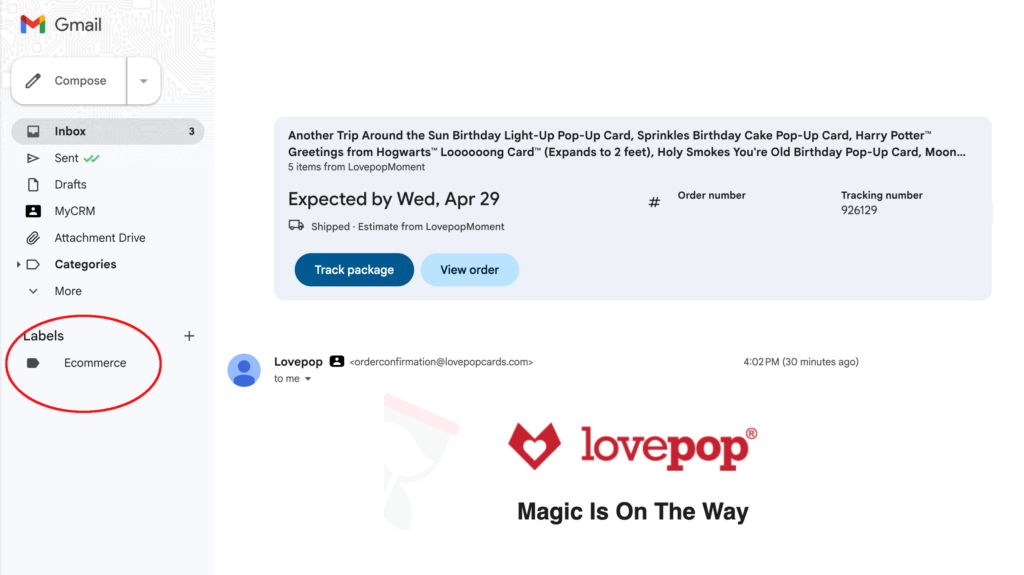
Example of an “Ecommerce” folder
“On my smartphone, I am frequently asked to update my QR code or my PDF apps. When I download, I find my app files and bookmarks are scrambled. Apps don’t work, or they send me to download more apps. What’s the best way to keep these apps up to date and usable?”
You’re right to be careful. QR codes are easy to use, but they’ve become a popular tool for scammers, especially when they’re posted in public places or tucked into Amazon packages you never ordered.
On a smartphone, the safest way to keep QR and PDF apps working is to update them only through the official app store (Apple App Store or Google Play), not through pop‑ups or random links. When you see an update message in an app, close it, go to the store yourself, search for that exact app, and update it there to avoid fake download prompts.
For QR codes, stick with your phone’s built‑in scanner first (the Camera app on iPhone, or Google Lens/Camera on Android). For PDFs, good “set it and forget it” choices are Adobe Acrobat Reader or Apple’s built‑in Files/Books apps on iPhone.
“I am an older person looking for a simple phone to receive calls & text messages. The phone I have is too complicated, and I do not need that.”
Here’s what the reviewers at Senior Living said: “After testing and comparing 25 options, we found that Consumer Cellular’s IRIS Easy Flip is the best cell phone for seniors. It’s simple and affordable, yet one of the few flip phones with internet browsing and Wi-Fi.”
Also on their 2026 list of top phones for seniors:
- Jitterbug Smart4 from Lively – Best Smartphone for Seniors
- iPhone 17 From AT&T – Most Durable Phone for Seniors
- Samsung Galaxy A16 5G from T-Mobile – Best Battery Life
Send us your cybersecurity question
for possible use in a future newsletter.
You don’t have to provide your name or email address.
If you do include an email address, we’ll do our best to respond to your question.
Was this content helpful?
Cyber Content Archive: Always Available
Cyber cartoon © 2026 CartoonStock | Original content © 2026 Aware Force LLC