
- How AI Can Copy Your Boss’s Voice (or Your Grandma’s) from Just a Few Seconds of Audio.
- Using ChatGPT for Health Advice? Make Note of This.
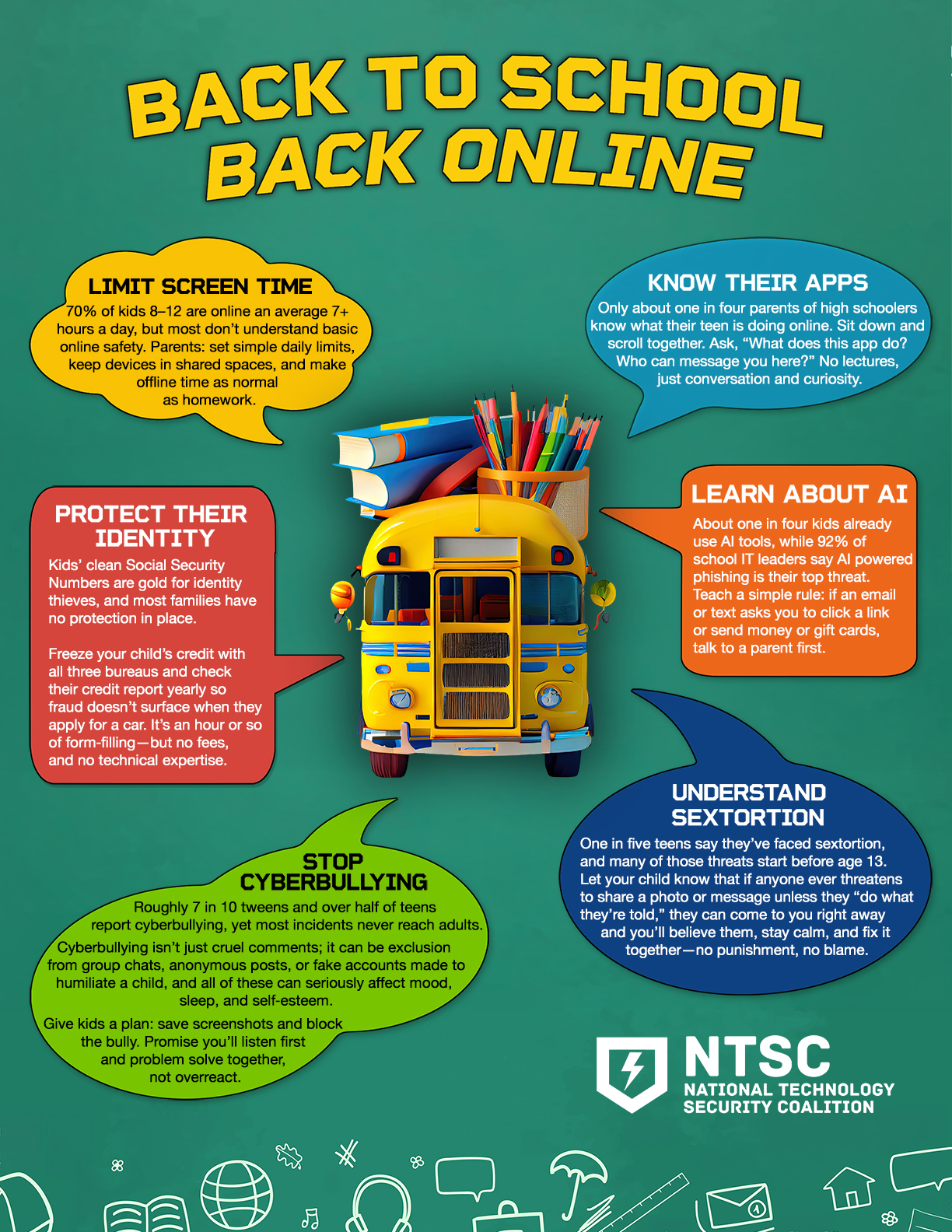
- Parents: Back to School Means Taking Steps to Prepare Your Kids Online.
- Passkeys Made Simple: The Questions People Keep Asking.
Live Cyber Poll
Update Your Password

Users’ passwords from these organizations have recently been found for sale on the dark web.
If you do business with any of these companies, change your account password and use two-factor authentication wherever possible.
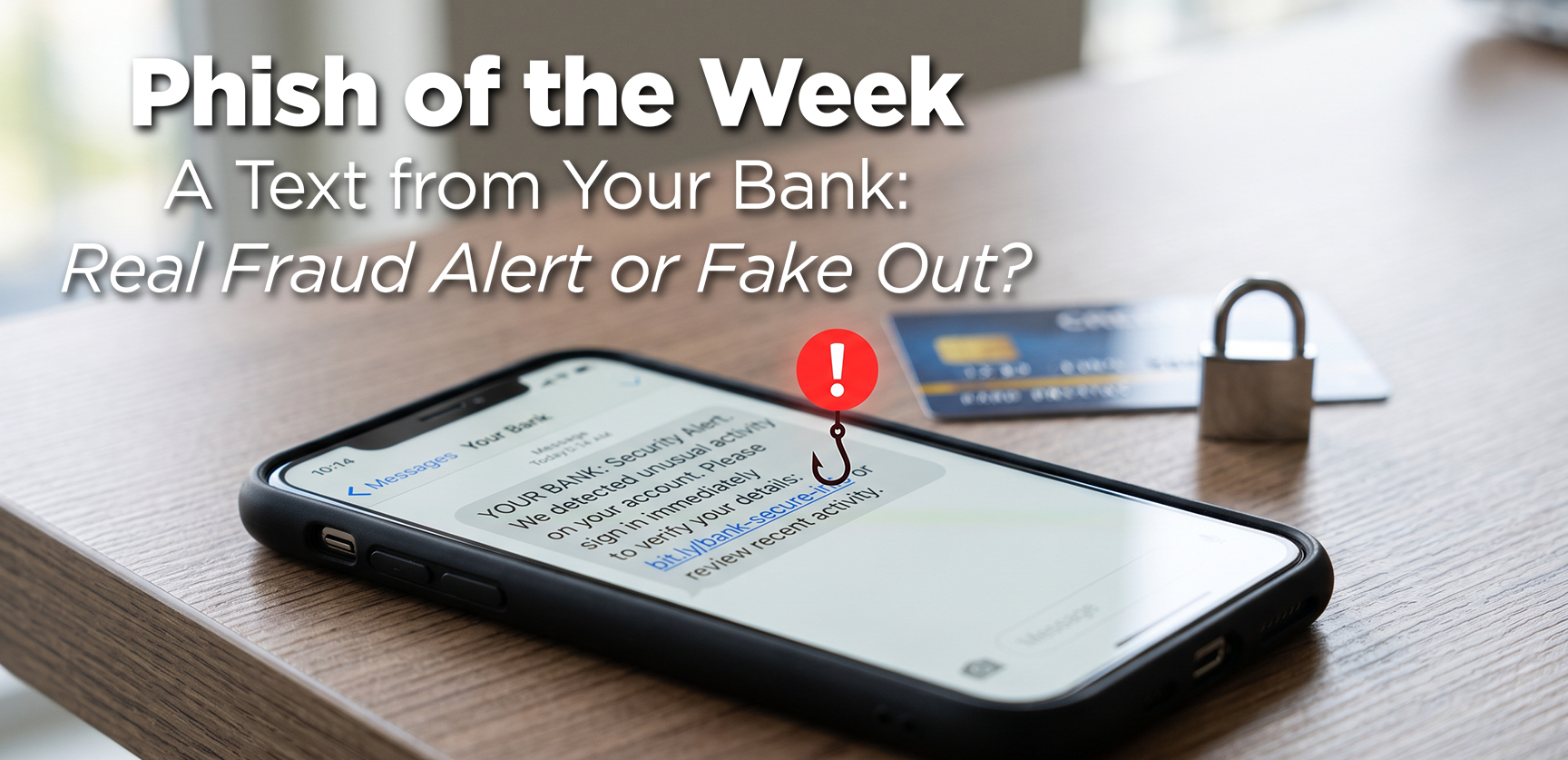
A text from your bank pops up saying
a check just hit your account, and you need to approve it,
or the payment will be stopped. What should you do?
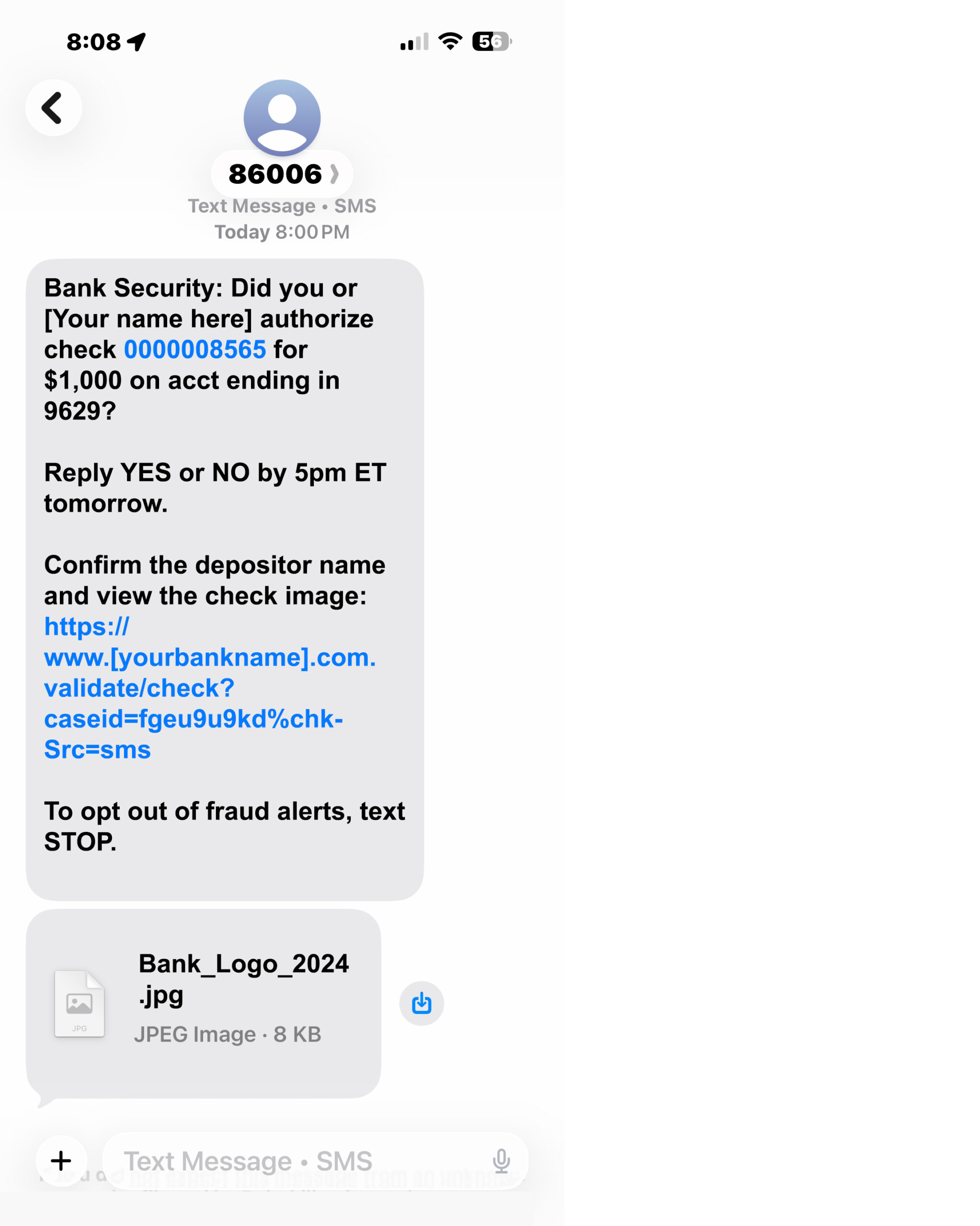
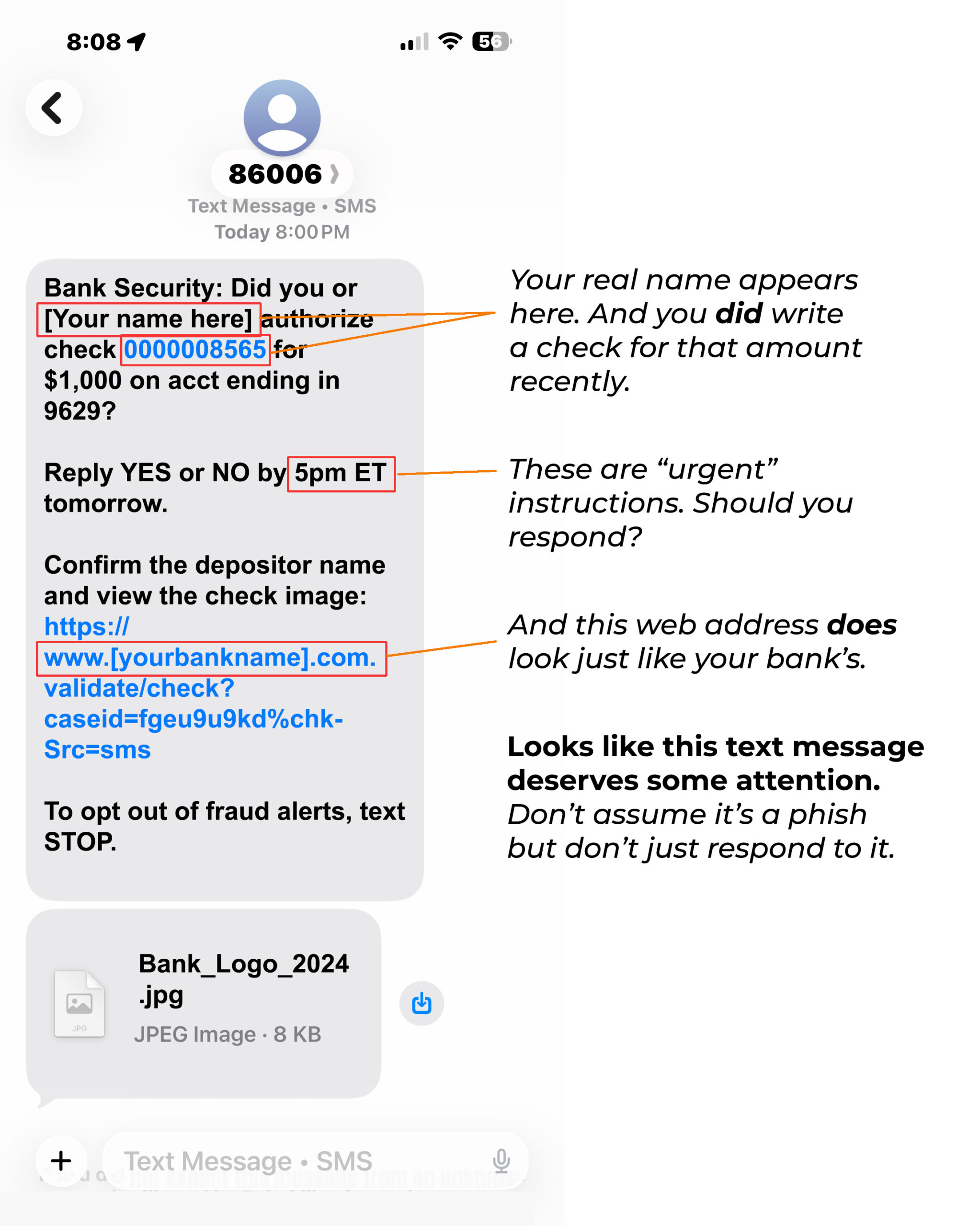
Well, unlike the examples we usually show you, this one is not a scam!
It was sent by the bank because you don’t usually write checks on that account, and the bank’s fraud system flagged it to make sure it’s really you.
Instead of tapping any link in the text, call the number on the back of your bank card or visit your bank’s website the way you normally do, then confirm the transaction there.
If it’s legit, the bank will see the alert on your account and help you approve or cancel the check safely.
Cybersecurity News You Can Use
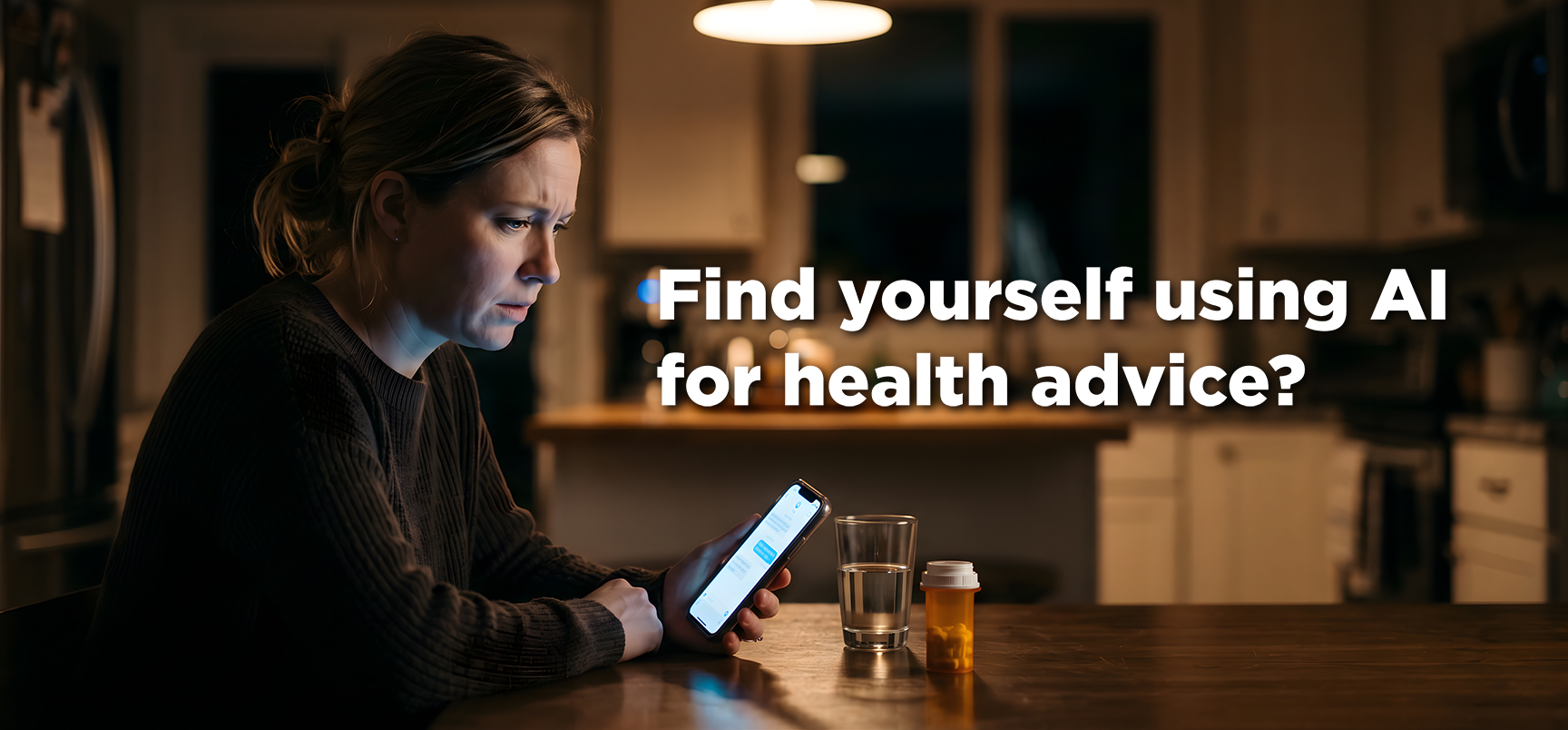
A new Oxford University study, the largest of its kind, concludes that AI chatbots correctly identified medical conditions in nearly 95% of cases when given clean written scenarios.
That’s the good news. The bad: when people described their own symptoms, accuracy collapsed to just 34.5%, worse than the group who simply Googled their symptoms. This is especially true in cases involving medical emergencies.
The problem isn’t AI’s medical knowledge. It’s that people don’t know which details matter, so chatbots can give wildly different answers based on slight wording changes.
Remember these cautions:
- Use it for context, not conclusions. AI is reasonably useful for understanding what a condition is, decoding medical jargon, or preparing questions for your doctor. It is not reliable for deciding whether your symptoms are serious or what to do next.
- Never let it make the ER call. If something feels urgent, go directly to a doctor, call 911, or call a nurse line. AI undertriages genuine emergencies more than half the time.
- Ask it for sources, then verify them. Nearly half of the chatbot health responses were problematic. Confident-sounding references to the platforms cited are often wrong or unreliable.
- Think before you type. Do not assume that chatbots protect your data like healthcare providers. Avoid entering names, test results, or other identifiers.
One more thing...

We’ve never had as many follow‑up questions on a topic as we did after our recent video about passkeys. Passkeys are digital keys stored on your phone or computer that let you log in with a fingerprint, face scan, or PIN instead of juggling passwords for every site and app.
If you switch an account from an old-fashioned password to a passkey, do you have to remove the password?
No, you don’t have to. Think of the passkey as your everyday, super-secure “easy button” for logging in, and the password as a spare house key you rarely use but keep locked up just in case something ever goes wrong. You can keep the old password as a backup. Remember, though, the same rules about safe passwords still apply: a password should be a lengthy phrase, not easy to guess, and not used on any of your other accounts.
If you get a new laptop or phone, how can you create a new passkey for that new device? Then do you delete the other passkey on the old device?
When you get a new phone or laptop, you can usually just sign into your Apple, Google, or Microsoft account and your passkeys come along for the ride. If not, you can add a new one when you set up the device.
One thing to remember: if you’re selling or recycling the old device, completely erase the device first. Open your device’s settings and use the built‑in “Erase all content and settings” or “Factory reset” option.
If I start using a passkey, should I delete the passwords in my iPhone passwords app?
No, it’s not necessary. In fact, it’s actually helpful to your old passwords around as a backup while you make sure passkeys are working smoothly.
I’m older and my fingerprint doesn’t get read by the phone. How can I overcome this problem. My phone doesn’t have face recognition, I think.
Fingerprint readers really do have a harder time with older, drier skin, so this is a common problem and not your fault. You can try gently cleaning the sensor with a damp cloth, or you can reset the fingerprint reader. Here’s how:
- On an iPhone (the newer Touch ID models): Go to Settings → Touch ID & Passcode, enter your passcode. Tap each old fingerprint and choose Delete, then tap “Add a Fingerprint” and follow the on‑screen steps to scan your finger again (you can add the same finger more than once or add a second finger).
- On an Android phone (the steps vary a bit by brand): Go to Settings → Security or “Security & privacy” → Fingerprint / Fingerprint Unlock. Delete any existing fingerprints, then choose “Add fingerprint” and follow the prompts to scan your finger from different angles until it reaches 100%.
But, hey, it’s also OK to skip fingerprints altogether and just use a PIN or passcode to unlock your phone.
Send us your cybersecurity question
for possible use in a future newsletter.
You don’t have to provide your name or email address.
If you do include an email address, we’ll do our best to respond to your question.
Was this content helpful?
Cyber Content Archive: Always Available

Cyber cartoon © 2026 CartoonStock | Original content © 2026 Aware Force LLC